Sandbox
--Steven Malikowski (talk) 18:58, 1 September 2015 (AWST) Steven Malikowski 2015-09-01
Steven's Second Comment
The text below comes from some instructions that a colleague wrote, for an app on a tablet. It was written in Word, so I used the Word plug-in for Media Wiki to create the formatting, or try to create the formatting. Next, I need to get the pictures fixed. I suspect that will involve uploading the images and changing in the links to images.
Completing an Assessment
To view and complete assessments, follow these steps.
- Start Myprogress, open Assessments by tapping the Dashboard icon, in top-left corner. [[image:|63x36px]]
- Select an assessment from the list that you need to complete. [[image:|153x52px]]
- Tap the Pencil icon in top-right corner, to begin the assessment. [[image:|25x25px]]
- Enter your name and email address, before you start filling in the form. C:\Users\fhowat\Desktop\Android Screenprints for Student Guides\Step 7. Basic layout of an assessment form (with assessor email validation).jpg
- Tap the Aa symbol in the top-right hand corner, if you want to change the viewing settings of an assessment. File:Step 8. Assessment Viewing Setting.jpg
- Tap the Circle next to the answer, to answer multiple choice questions. [[image:|22x42px]]
- Tap on the Empty Field in the right hand corner next to the question to reveal a dropdown menu of options, to answer a question which uses a rating scale.
[[image:|170x92px]]
- Tap the Save icon in the top-right hand side. [[image:|20x22px]]
- Select Send & share online as complete to save the assessment. [[image:|198x72px]]
NOTE: If you fail to answer any question, a pop up box will appear to remind you that you must complete all questions.
My First Comment
This is my first comment in the sandbox, as I learn how to add comments to Moodle docs. I added a horizontal line at the end of this comment.
It seems easy enough to make text bold or italic. But I'm still figuring out how to add a [link], at least one that works.
I'm going to try some other options later, but overall, I wish the formatting bar used here had similar features to the formatting bar in Moodle.
Test page for docs
Testing email notification
-Testing-
-Testing-
- hi*
-Testing-
| Col1 | Col2 |
|---|---|
| Test1 | Test2 |
| Test1 | Test2 |
| Test1 | Test2 |
Functions and Examples
Following are the functions that constitute the basic log API for Moodle.
add_to_log($courseid, $module, $action, $url=, $info=, $cm=0, $user=0)
user_accesstime_log($courseid=0)
get_logs($select, array $params=null, $order='l.time DESC', $limitfrom=, $limitnum=, &$totalcount)
get_logs_usercourse($userid, $courseid, $coursestart)
get_logs_userday($userid, $courseid, $daystart)
The basic working of these functions can be categorized into two categories:-
- Adding data to logs
- Fetching data from logs
Let us take a deeper look into both of these:-
something in pre tags
and something in code tags
First edit in sandbox
An additional edit to sandbox This is where you can edit the content
Testing gallery
-
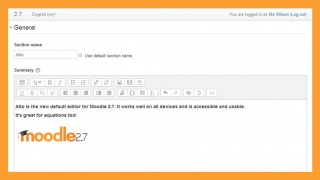 Atto
Atto -
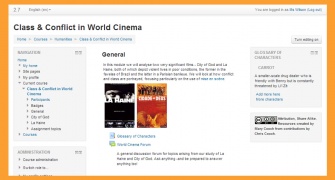 Clean
Clean -
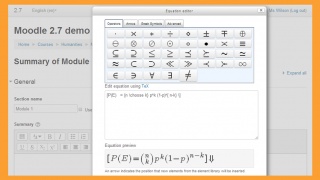 MathJax


more testing...
pt_br:Main_Page

