Course formats
What is a course format?
A course format refers to the layout of a course. Teachers can select a course format from Course navigation > Settings > Course format.
An administrator can enable, disable or delete course formats for courses from Site administration > Plugins > Course formats > Manage course formats. They can also change the order in which available course formats are displayed to teachers in the course settings.
In Site administration > Plugins > Manage course formats via the edit links for Custom and Weekly sections, you can disable or enable the indenting of items on course pages. You can also reset any indentation previously set.
Standard course formats
Custom sections
The course is divided into customisable sections that a teacher can give titles to. You can add content and activities in each section.
Tip: This is great to use if your course is objective based and each objective may take different amounts of time to complete. An example of this would be scaffolding where the students are building upon the knowledge from earlier topics.
A course in custom sections format has an initial number of sections as set in Number of sections (numsections) in Site administration > Courses > Course default settings.
Weekly sections
The course is organised into sections corresponding to each week of the course, beginning from the course start date. You can add content, forums, quizzes, and so on in the section for each week. The current week is highlighted.
- Tip: If you want all your students to work on the same materials at the same time, this is a good format to choose.
- Note: Make sure your course start date is correct. If it is not, your weeks will have the wrong date on it. This is especially important if you are restoring a course to use with a new section of students.
If you have students starting the course at different times, you can use the feature Course relative dates to display dates for each course section relative to the student's start date in the course.
A course in weekly sections format has an initial number of sections as set in Maximum initial number of sections (maxinitialsections) in Site administration > Plugins > Weekly sections.
Show one section per page
With Weekly or Custom sections, in Course navigation > Settings > Course format > Course layout you can enable "Show one section per page".
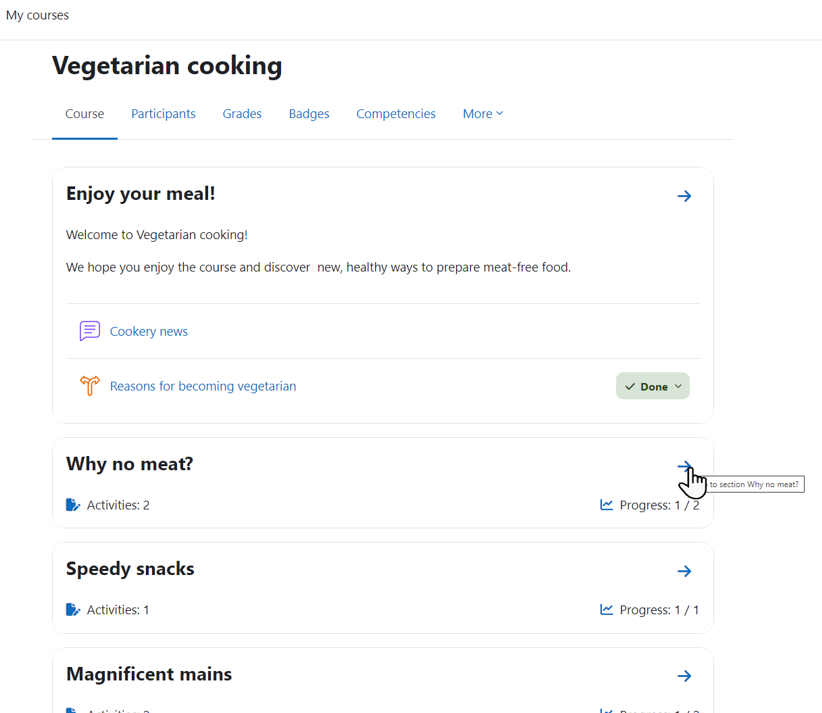
The course home page shows just the section names and any text in the section description, along with activity and resource numbers, with the names being click-able. This is what you see the first time you access the course. Once you have selected a section by clicking on its name, you then see one section at a time and access the other sections from the Course index on the left.
Single activity
The single activity format only has one section, and allows the teacher to add one activity only to the course. When the single activity format is selected, a drop down menu appears for the teacher to choose the activity they wish to use.
You can add more activities to your single-activity-format course by adding the Additional activities block.
Additional course formats
The Moodle community has developed a number of course formats, available in the plugins directory.
