Teams
 This feature is part of Moodle Workplace™, which is available through Moodle Certified Partners and Service Providers only.
 |
Team management has never been easier with our fully customisable dashboards to guide users through their learning and managing journeys, showing progress and upcoming learning for individuals and team members. |
|---|

Team overview
The Team overview block displays information about team members of managers or department leads. It has been designed to be a central part of the Moodle Workplace Manager journey.
The block shows people reporting to the user, with users and job details and relevant information about completion and overdue or expired learning.
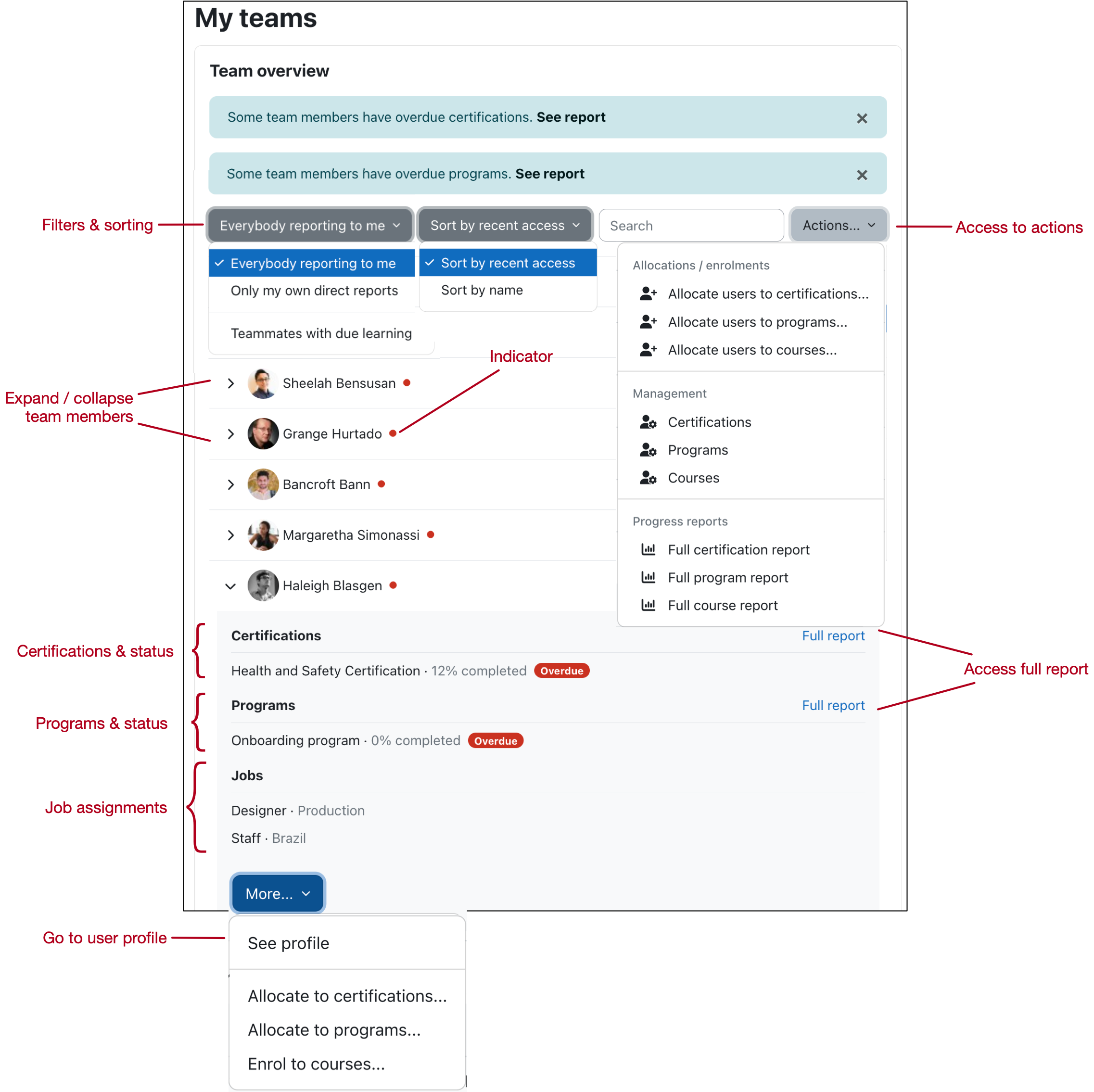
For each user, the profile picture, first name, last name, and last access information is displayed. A warning indicator is shown if a program or a certification is overdue. When the details of a team member are expanded, the following additional information and actions are displayed:
- The status of active certifications and a link to the progress report
- The status of active programs and a link to the progress report
- The status of active courses and a link to the progress report
- Jobs details of all job assignments
- An action link to view the user's profile
- Action links to allocate the user to certifications, programs, and courses
The following interactions are available from the quick actions menu:
- Filters:
- Everybody reporting to me: displaying all users no matter at which level "below" the manager in the organisation structure they are located.
- Only my own direct reports: displaying all users who are located in the organisation structure one level "below" the manager.
- Teammates with due learning: displaying users with an overdue program or certification.
- Order:
- Sort by name
- Sort by recent access
- Live search: Search for specific items in real-time within the Team overview block.
- Actions
- Allocations/enrolments
- Allocate users to certifications...: A modal window opens to allocate users to one or many certifications. You can further specify the Status (Active or Suspended) and Dates: Same as defined in certifications or Select date (start date and due date).
- Allocate users to programs...: A modal window opens to allocate users to one or many programs. You can further specify the (Active or Suspended) users and Dates: Same as defined in programs or Select date (start date, due date, and end date). Note: Users can only be selected if the Allocate users to programs/certifications permissions have been granted in the position framework.
- Allocate users to courses...: A modal window opens to allocate users to one or many courses. You can further specify information about the time-related data about the enrolment: Starting from (Course start, Today, Now), Enrolment duration (Unlimited or number of days), and Enrolment ends.
- Management
- Certifications: Jump straight to the list of active certifications.
- Programs: Jump straight to the list of active programs.
- Courses: Jump straight to the list of course enrolments in the main category of the tenant.
- Progress reports
- Full certification report: Direct access to the certification progress report of all team members.
- Full program report: Direct access to the program progress report of all team members.
- Full course report: Direct access to the course progress report of all team members.
- Allocations/enrolments
The More... menu lets you perform the following tasks for a particular user. The allocation and enrol menus will only appear for direct reports:
- See profile: Jump directly to the user's profile page
- Allocate to certifications...: Same as above, but allocation is limited to the selected user.
- Allocate to programs...: Same as above, but allocation is limited to the selected user.
- Enrol to courses...: Same as above, but enrolment is limited to the selected user.
If the number of users shown on the Team overview block comprises more than 30 members, the standard pagination is shown below the table.
As a manager, the quickest way to access the management pages of certifications, programs, and courses is via the icons in the Workplace launcher.

Management of certifications
Selecting the Certifications icon opens an overview of all active certifications.

For each active certification, the Certification name, any given Tags, and the Program name that is used for the initial certification are displayed.
You can filter the list of active certifications by any column. Selecting a certification displays its detailed information. Unless you have the required permissions, these details are read-only. For more information, refer to the dedicated Certifications documentation.
Some programs may display a Shared Space label, indicating that the certification may also be in use in other tenants.
To the right of each certification, you will see the following actions: Users (staff allocation) and Progress report (certification reporting).
Staff allocation to certifications
As a manager, you can allocate staff to certifications in three different ways.
1. Using the Certifications icon in the Workplace Launcher
The Users option provides access to staff who are already allocated to the certification. To allocate users, select Allocate users:

Once users are added, they appear in the list of allocated users. For each user, the following actions are available (with links to the relevant sections in the Certifications documentation):
- Edit allocation: Manually override the user's schedule information
- Certify user: Manually certify a user without waiting for certification completion
- Delete allocation: Remove the user and all associated data from the certification
- Certification activity log: View the user's progress within the allocated certification
- Progress overview: Opens a modal window similar to the certification view on a user's dashboard

The actions Edit status and dates and De-allocate users can be applied in bulk to multiple users via the With selected users... drop-down at the bottom of the list.
2. Using 'Allocate users to certifications...' in the My teams block
From the My Teams block, select Allocate users to certifications… from the drop-down menu.
This opens a modal window where you can allocate one or more users to one or more certifications. You can further specify the Status (Active or Suspended) and Dates: Same as defined in certifications or Select date (start date and due date).

3. Using 'Allocate to certifications...' from the user's 'More...' menu in the My teams block
In the My Teams block, select Allocate users to certifications… from the More... drop-down menu for a specific user.
This option will open a modal window where you can allocate the current user to one or many certifications. You can further specify the Status (Active or Suspended) and Dates: Same as defined in certifications or Select date (start date and due date). However, you cannot choose a user, since this has already been pre-selected.

Reporting of certifications
As a manager, you can access certification reports in two different ways.
1. Using the Progress report action on the certifications management page
From the Reports tab, you get access to the following certifications reports:
- Certifications progress: Status and progress data of all users and certifications
- Overdue certifications: The same report, but already pre-filtered by certifications that are running late

Both reports contain the following columns:
- First name / Last name
- Certification name
- Allocation date
- Due date
- Expiry date
- Certification status (Open, Certified, Overdue, Suspended, Future allocation)
- Certified date
- is recertification (Yes, No)
- Current program
- Current program status (Open, Completed, Overdue, Suspended, Future allocation)
- Current program progress
- Actions:
- Certification activity log: View the user's progress within the allocated certification.
- Progress overview: This shows progress details of the user using the same format as found on the dashboard
2. Using 'Full program report...' in the My teams block
This is a direct link to the Certifications progress report shown above.
Management of programs
Selecting the Programs icon opens an overview of all active programs.

For each active program, the Program name, any given Tags, Associated certifications, and the Category name are displayed.
You can filter the list of active programs by any column. Selecting a program displays its detailed information. Unless you have the required permissions, these details are read-only. For more information, refer to the dedicated Programs documentation.
Some programs may display additional information via labels next to the program name:
- Shared Space indicates that the program may also be in use in other tenants.See the dedicated Shared Space section for details.
- Hidden from learners indicates that the program will not appear in the list of My courses, even if a learner has been assigned to the program.
To the right of each certification, you will see the following actions: Users (staff allocation) and Progress report (program reporting).
Staff allocation to programs
As a manager, you can allocate staff to programs in three different ways.
1. Using the Programs icon in the Workplace Launcher
The Users option provides access to staff who are already allocated to the programs. To allocate users, select Allocate users:
Once users are added, they appear in the list of allocated users. For each user, the following actions are available (with links to the relevant sections in the Programs documentation):
- Edit allocation: Manually override the user's schedule information (not available if Allocation source in Certificate)
- Re-calculate program completion: Reset and recalculate the user's program completion
- Delete allocation: Remove the user from the program (not available if Allocation source in Certificate)
- Progress overview: Opens a modal window similar to the program view on a user's dashboard

The actions Edit status and dates, Re-calculate program completion, and De-allocate users can be applied in bulk to multiple users via the With selected users... drop-down at the bottom of the list. Users will be skipped if their Allocation source is not Manual.
2. Using 'Allocate users to programs...' in the My teams block
From the My Teams block, select Allocate users to programs… from the drop-down menu.
This opens a modal window where you can allocate one or more users to one or more programs. You can further specify the Status (Active or Suspended) and Dates: Same as defined in programs or Select date (start date, due date, and end date).

3. Using 'Allocate to programs...' from the user's 'More...' menu in the My teams block
In the My Teams block, select Allocate users to programs… from the More... drop-down menu for a specific user.
This option will open a modal window where you can allocate the current user to one or many programs. You can further specify the Status (Active or Suspended) and Dates: Same as defined in programs or Select date (start date, due date, and end date). However, you cannot choose a user, since this has already been pre-selected.

Reporting of programs
As a manager, you can access program reports in two different ways.
1. Using the Progress report action on the programs management page
- Program progress: Status and progress data of all users and programs
- Overdue programs: The same report, but already pre-filtered by programs that are running late

Both reports contain the following columns:
- Program name
- First name / Last name
- Allocation source: Manual, Dynamic, Certification
- Certification name: Certification in which the programs is used, otherwise empty
- Start date
- Due date
- Program status: Open, Completed, Overdue, Suspended, Future allocation
- Program progress: In percent
- Program completion date
- Action:
- Progress overview: This shows progress details of the user using the same format as found on the dashboard.
The Filters dropdown contains a powerful option to reduce the displayed users by specifying organisational data. You have the following options that can be used stand-alone or in conjunction with the other filters:
- Show my own direct report only: All staff that are placed one level below me in the organisational hierarchy
- Show everybody reporting to me: All staff that are placed in the organisational hierarchy, no matter at what level
- Customise...: You can select a department (including its subdepartments) and/or a position (including its subpositions).

Filtering by organisation structure is particularly useful when you are dealing with very large teams in your organisation.
2. Using 'Full program report...' in the My teams block
This is effectively a direct link to the Program progress report shown above.
Management of courses
Staff allocation / enrolment to courses
To handle staff allocation to courses as a manager, select the Course enrolments icon from the Launcher which will guide you to the following screen. Any courses that have staff enrolment configured and enabled will be shown.

To allocate users from your team(s) to one or multiple courses, select the + Enrol users button. You must choose at least one entry for Select courses and at least one for Select users; multiple selections are supported for both settings. When clicking on the Show more... option, additional enrolment-related fields can be configured:
- Starting from: Courses start, Today or Now
- Enrolment duration: length of enrolment (Unlimited or specified number of days). Only available if Enrolment ends is disabled.
- Enrolment ends: If enabled, the selected user(s) will be unenroled on the specified date

When you view the enrolments of a course, only users who are reporting to you will be shown. The following information is displayed:
- First name / Last name: Full user name
- Enrolment method: How a user has been added, either by you (Staff manager allocations or via other enrolment methods
- Enrolment starts: First date and time of enrolment
- Enrolment ends: Last date and time of enrolment
- Enrolment status: Active or Suspended
- Actions (only available when enrolment method is Staff manager allocations)
- Edit enrolment: Change enrolment settings
- Delete enrolment: Unenrol user from course

When editing a user's enrolment, you can change the same settings when you created the user and you can change the Status from Active to Suspended, and vice versa.

There are various alternative ways to enrol staff to courses:
1. 'Allocate users to courses...' from the Action menu in the My teams block
This is effectively a direct link to the staff enrolment process shown above.
2. Using 'Enrol to courses...' from the user's 'More...' menu in the My teams block
A modal window opens to allocate the user to one or many courses. You can further specify information about the time-related data about the enrolment: Starting from (Course start, Today, Now), Enrolment duration (Unlimited or number of days), and Enrolment ends.

3. Using the course catalogue
When you select a course from the learning catalogue and you are not enroled in the course, you should see a dedicated section called Staff manager enrolment on the course page. Select the My staff enrolment button to access the user enrolment page.

When accessing a course you are already enroled to, navigate to More... > Enrol staff to course and follow the same process as above.

Reporting of courses
To access the report that shows the progress across courses of all staff reporting to you (direct and indirect reports), select 'Full course report' from the Action menu in the My teams block.

The report shows the following information:
- Course: Course name and link
- First name / Last Name: Users full name
- Method: Enrolment method how the user has been added to the course
- Time started: First course access
- Time ended: Date course has last been accessed
- Course status: Active, Suspended or Completed
- Activity completion: Progress shown as <Number of completed activities> vs <Number of total activities>
- Time completed: Date of course completion
To access the same report for a single user, either use the filter in the progress report or select Full report link beside a user on the My teams block.

