AI placements
About AI placements
Placements define how and where AI actions can be used. Site administrators can choose which actions are available in each placement through their settings.
By default, all AI placements are disabled. You can enable them via Site administration > General > AI placements.
The first time a user tries an action, they must accept the AI usage policy before proceeding. This is only required once per user, so accepting within one placement means they are not prompted by other placements that may be available.
Text editor placement
Text editor placement actions available are
- Generate text
- Generate image
Actions are available in the text editor by clicking the Generate AI content icon or via the Insert menu.

AI generate text:
Users can generate text via the Generate AI content icon or through the insert menu, where they can provide a description of the text to be generated:

AI generate image:
Users can generate images via the Generate AI content icon or through the Insert menu, where they can provide a description and choose some basic image options:

Course assistance placement
Enable Summarise text and Explain text by toggling the settings.
Once enabled, the Summarise and Explain options can be used in any course page to summarise or explain the main text content of the page.

AI access controls
New feature
in Moodle 5.1!
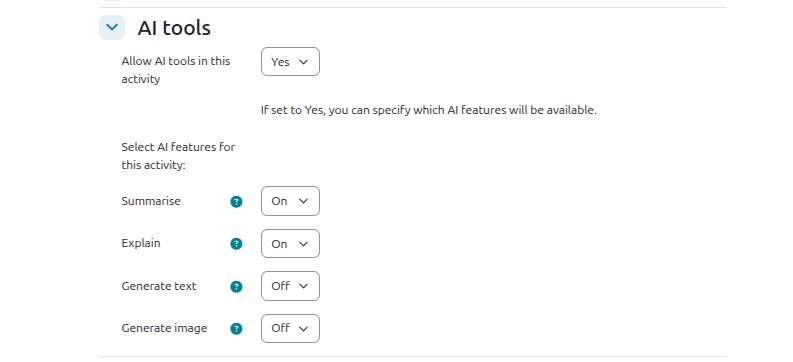
Teachers can turn AI tools on or off in their course via a course setting. If AI tools are enabled in a course, teachers can then specify which tools are available in an activity via the activity settings.
AI placement capabilities
The following capabilities control the ability to use AI features at site or course level. All three are set to 'allow' for the roles of Manager, Student, Teacher and Non-editing teacher.
- Summarise text controls the ability to summarise content in areas where the button is visible.
- Explain text controls the ability to explain content in areas where the button is visible.
- Generate image controls the ability to generate an image from the icon in the editor.
- Generate text controls the ability to generate text from the icon in the editor.
- Prevent a role (e.g. student) from performing one of these actions anywhere on the site
- Access Site administration > Users > Define roles.
- Edit the Student role.
- Set the relevant capability to 'Prevent' and save.
- Prevent a role (e.g. student) from performing one of these actions in a specific course
- Access the relevant course.
- Click Participants and then from the dropdown, click Permissions.
- Select the Student role.
- Set the relevant capability to 'Prevent' and save.
