|
|
| Line 1: |
Line 1: |
| {{Backup}} | | {{Backup}} |
| {{Update}}
| | ==Restoring a course backup== |
|
| |
|
| Courses can be restored from a backup made by Moodle. Course backups are usually stored in the '''backupdata''' folder. There is a restore link next to every course backup.
| | To restore a course backup |
| | | # Go to ''Settings > Course administration > Restore'' |
| The backup and restore process is a common way of moving or, copying specific courses from one Moodle to another.
| | # Upload the backup file or choose a file in the course backup area or user private backup area and click Restore |
| | | # Confirm - Check that everything is as required then click the Continue button |
| ==Restoring a course==
| | # Destination - Choose whether the course should be restored as a new course or into an existing course then click the Continue button |
| [[Image:Course_restore_s1.jpg|thumb|The backupdata folder]][[Image:Course_restore_s1b.jpg|thumb|Restoring a course - page 1]][[Image:Course_restore_s2.jpg|thumb|Restoring a course - page 2]][[Image:Course_restore_s3.jpg|thumb|Restoring a course - page 3]]
| | # Settings - Select activities, blocks, filters and possibly other items as required then click the Next button |
| To restore a course from a backup file:
| | # Schema - Select/deselect specific items and amend the course name, short name and start date if necessary then click the Next button |
| | | # Review - Check that everything is as required, using the Previous button if necessary, then click the 'Perform restore' button |
| #Either upload a backup zip file to your course files area or click Restore in the [[Course administration block]] to access the backupdata folder.
| | # Complete - Click the continue button |
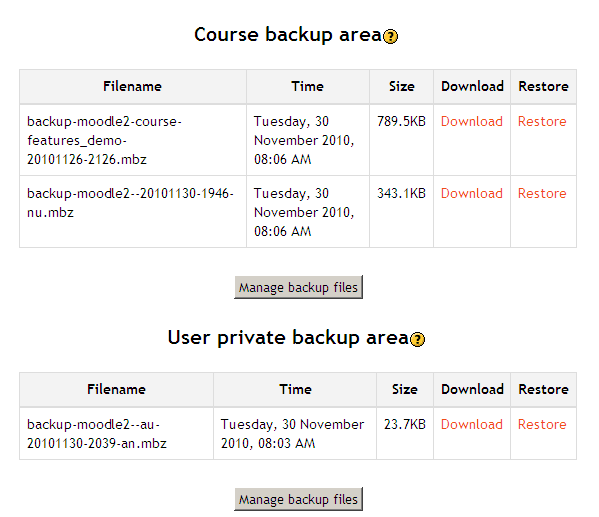
| #Click the Restore link opposite the file you want to restore. | | [[Image:Course backup file areas 1.png]] |
| #On the next page, click Yes to the question "Do you want to continue?" to start the restore process.
| |
| #Click the Continue button at the bottom of the next page, listing details of the backup.
| |
| #On the next page, select whether you want to restore to the existing course, adding data to it or deleting it first. If you have permission to restore to a new course, the restore page will contain additional options for setting the new course category, short name, full name, and start date. | |
| #Choose which activities you want to restore and whether to include user data (option only available for users with the capability [[Capabilities/moodle/restore:userinfo|moodle/restore:userinfo]]).
| |
| #Select course users if you are including user data (option only available for users with the capability [[Capabilities/moodle/restore:userinfo|moodle/restore:userinfo]]).
| |
| #Select appropriate role mappings. The options depend upon the roles you are allowed to assign. By default, teachers are only allowed to assign the roles of non-editing teacher, student, and guest. | |
| #Click the Continue button.
| |
| #On the next page, click the "Restore this course now!" button.
| |
| #On the next page, the progress of the restore is displayed with a report if it was successful. Click the Continue button. | |
| | |
| Restoring a course from a back-up file saved on a local computer:
| |
| In case you are restoring a course to a new site, please remember to check the course category after restoration. Courses get restored in the default category and you might have to manually move it to the correct category.
| |
|
| |
|
| [[fr:Restauration]] | | [[fr:Restauration]] |
Restoring a course backup
To restore a course backup
- Go to Settings > Course administration > Restore
- Upload the backup file or choose a file in the course backup area or user private backup area and click Restore
- Confirm - Check that everything is as required then click the Continue button
- Destination - Choose whether the course should be restored as a new course or into an existing course then click the Continue button
- Settings - Select activities, blocks, filters and possibly other items as required then click the Next button
- Schema - Select/deselect specific items and amend the course name, short name and start date if necessary then click the Next button
- Review - Check that everything is as required, using the Previous button if necessary, then click the 'Perform restore' button
- Complete - Click the continue button