Activity report
From MoodleDocs
To access an activity report:
- Log in as a teacher or administrator
- Select a course to generate a report on
- Go to the "Administration" box on the left side of the page
- Select "Reports"
- On the new screen, select "Activity report". It will be approximately in the middle of the screen.
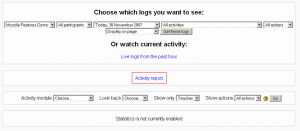
Where to click for a full report - You will have an activity report sorted by topic

A full activity report


An activity report will show all activity in the course, sorted by topic. Each item will be shown with its type and name.
Alternately, for a report on a single person:
- Log in as a teacher or administrator
- Select a course to generate a report on
- Go to the "People" box on the left side of the page
- Select "Participants"
- Click the person's name
- Select the "Activity Reports" tab
From here you can select an outline report, full report, grade report, or select today's logs or all logs. Again, reports are sorted by topic.

A detailed report on a person will show each item, organized by topic, with what that person has done involving that item. For example, a forum will be listed with how many posts to that forum a person has made.
