Text editor: Difference between revisions
From MoodleDocs
| Line 59: | Line 59: | ||
====Insert table==== | ====Insert table==== | ||
<gallery> | |||
Image:HTMLeditor_Insert_Table_general_1.png|thumb|center|300px|General tab | |||
Image:HTMLeditor_Insert_Table_advanced_1.png|thumb|center|300px|Advanced tab | |||
</gallery> | |||
==See also== | ==See also== | ||
Revision as of 13:12, 6 December 2010
Template:Moodle 2.0The Moodle 2.0 HTML standard editor uses TinyMCE but other Text editors can be used.

List of groups
For those who are not familiar with the tool bar, here are the functions listed by group using the above example. Remember that the site administrator can edit or provide additonal toolbars.
Row 1
 - Font, size and heading group
 - Undo and Redo group
 - Find and Replace group
 |Full screen toggle


Row 2
 - Text effect group
 - Line format group
 - Formatting group
 - Color group
 - Paragraph group


Row 3
 - Number and Bullets and indents
 - Link group
 - Insert group
 - HTML source toggle & spellchecker


Special features
Color pickers
There are 4 levels of selecting a font or background color,
- A quick pick 5x8 matrix of colors
- "More colors" that links to Picker, Pallet and Named tabs
-
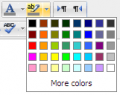 A quick pick 5x8 matrix of colors
 -
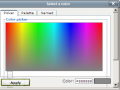 A rainbow color picker tab
 -
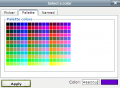 A Pallet tab with a 18x12 matrix of colors
 -
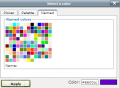 A Named tab with custom pallets


Insert images and media

- 1 Insert Image - uses File picker
- 2 Insert Emoticon
- 3 Insert Media - uses File picker
- 4 Insert Equation - uses java script editor
- 5 Insert Non breaking space
- 6 Insert Custom character - Special keyboard characters
- 7 Insert Table -
File picker

Equation editor

Custom character

Insert table
-
 General tab
 -
 Advanced tab


See also
- Text editors - Moodle 2.0 will handle many kind of text editors
- Site administration>Appearence>HTML settings - to change emoticon HTML code or images
- Site administration>>Plugins>Text editors - change spellchecker and manage text editors
